
What is a Digital Planner? Why Sell One in 2026?
A digital planner is an interactive PDF file. You can use it on a tablet or computer. Apps like GoodNotes, Notability, or Xodo open these files. They allow you to write, draw, and type directly onto the pages. The key feature is hyperlinking. You click a tab. It jumps you to a specific section. This makes it feel like a physical planner.
They are popular for several reasons. You can reuse them year after year. This saves money. You can personalise them easily. You can add stickers or templates. They are portable. You carry hundreds of pages on one device. This is convenient.
The market for digital products, including planners, is not slowing down. In fact, the global digital planner market size was valued at USD 587.6 million in 2022 and is projected to reach USD 1.2 billion by 2030, according to some analyses. This shows strong demand. You have a real opportunity here.
You don't need a large upfront investment. You create the product once. You sell it many times. This is the definition of passive income. It's not truly passive. You still market it. You still update it. But the creation is a one-off effort for each version.
The technology is accessible. Design tools are easier to use than ever. Selling platforms are simple to set up. You can start small. You can learn as you go.
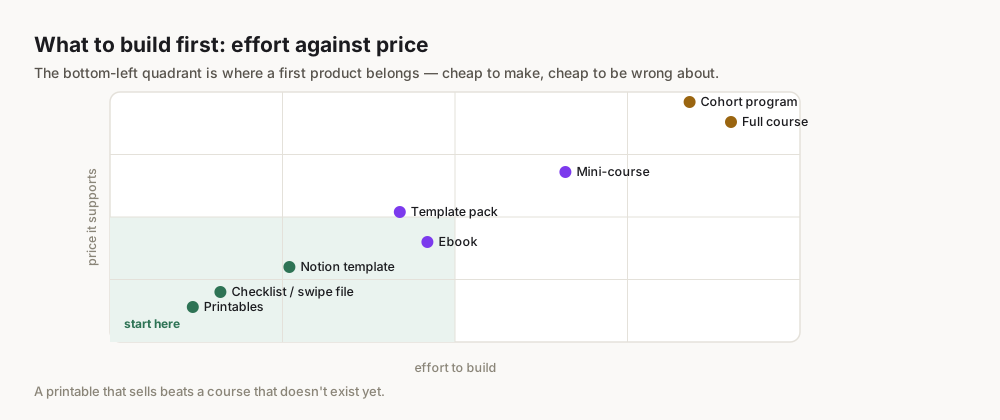
Start by thinking about your own planning needs. What problems do you face? What kind of planner would solve them?
How Do You Create a Digital Planner?
Creating a digital planner involves several distinct steps. You need an idea, design skills (or tools), and a way to make it interactive. This is the core of the process.
Step 1: Niche Down and Identify Your Audience
This is the most important step. Do not skip it. "Planner" is too broad. You need to be specific. Who are you helping? What problem are you solving?
Think about specific groups.
- Students: Do they need assignment trackers? Revision schedules?
- Small business owners: Do they need social media planners? Content calendars? Financial trackers?
- Parents: Do they need meal planners? Chore charts? Family activity organisers?
- Fitness enthusiasts: Do they need workout logs? Meal prep guides? Progress trackers?
You need to name the actual place your audience hangs out. The subreddit. The Facebook group. The comment section under a product like yours. Look at their existing problems. What are people asking for? What complaints do they have about current solutions?
Find a gap. Maybe existing planners are too complex. Maybe they lack a specific feature. Maybe they are not visually appealing to a certain demographic.
Search "digital planner" on Etsy and filter by "best sellers". Read the negative reviews. These complaints highlight unmet needs. They show you what customers are missing.
Step 2: Plan Your Planner's Structure and Content
Before you design, map it out. What sections will it have? What pages?
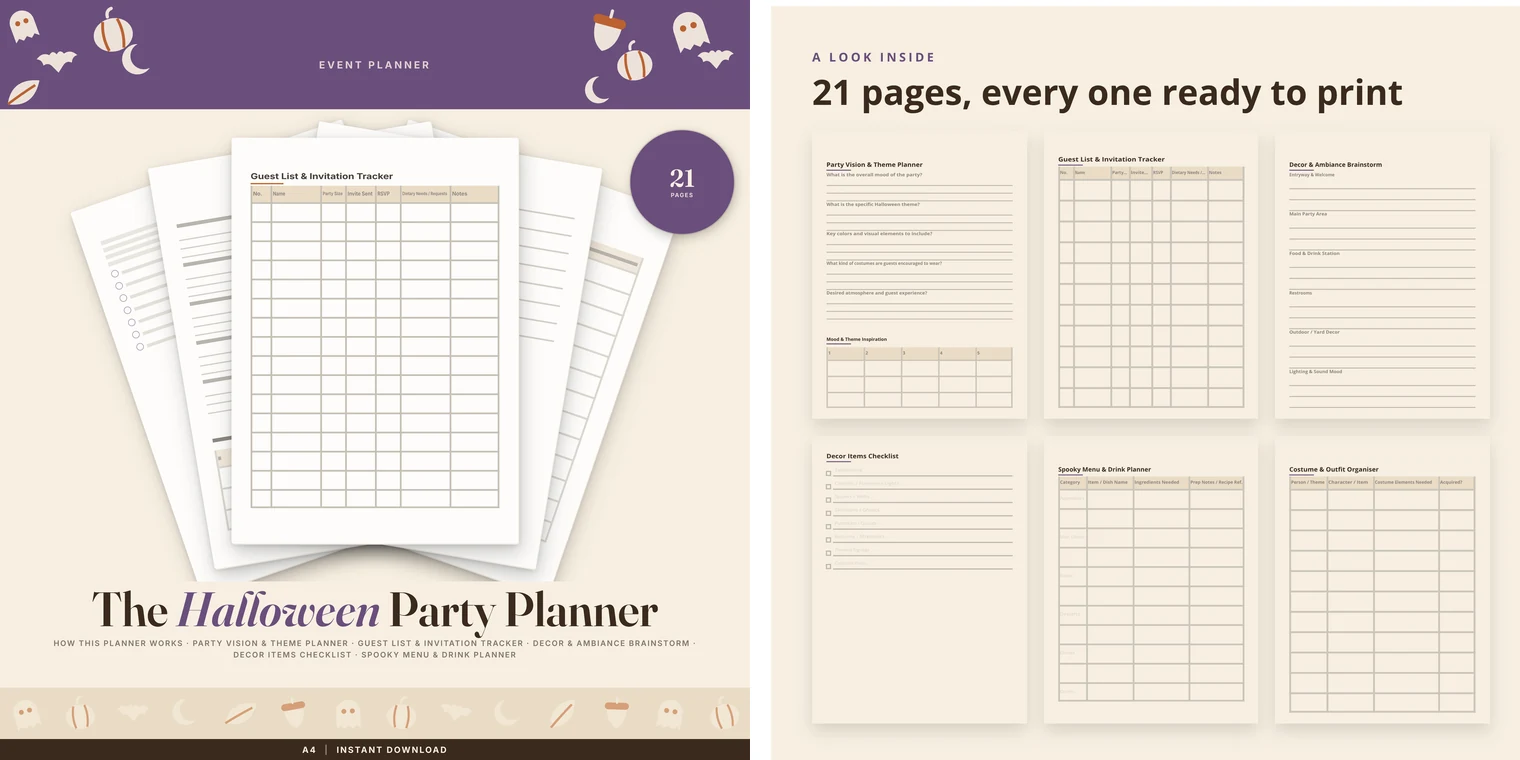
A typical digital planner might include:
- Cover page
- Index/Dashboard page (hyperlinked to all sections)
- Yearly overview
- Monthly pages
- Weekly pages
- Daily pages (optional)
- Goal setting pages
- Habit trackers
- Notes sections
- Specialised pages (e.g., budget, meal plan, project tracker)
Consider the user experience. How will they navigate it? Where do the hyperlinks need to go? Sketch it out on paper first. This saves time later.
Step 3: Design Your Planner
This is where you bring your vision to life. You have several options for tools.
For Total Beginners: Canva
Canva is a popular choice. It's easy to use. It has many templates.
- Set up your document: Create a custom size. Standard tablet aspect ratios are 4:3 (e.g., 2048 x 1536 px) or 16:10 (e.g., 2560 x 1600 px).
- Design your pages: Use Canva's elements, fonts, and colours. Keep your design consistent. Create a few master pages (e.g., a monthly layout, a weekly layout). Duplicate these.
- Add hyperlinks: This is critical. In Canva, you can link text or objects to other pages within your PDF. Select the element, click the link icon, and choose the page number. This turns it into an interactive planner.
- Export as PDF (Print): This ensures the hyperlinks work.
Canva offers a free tier. Canva Pro costs £11.99 per month or £99.99 per year when billed annually according to their pricing page. The Pro version gives you access to more premium elements and features.
For More Control: Adobe Illustrator/InDesign or Procreate
If you have design experience, these tools offer more flexibility.
- Adobe Illustrator: Great for vector graphics. You can create intricate designs. It's good for scalable elements.
- Adobe InDesign: Designed for page layout. It's perfect for multi-page documents like planners. It handles hyperlinks well.
- Procreate (iPad only): Excellent for hand-drawn, artistic planners. You design each page as an image. Then you export them and assemble them into a PDF. You will need another tool (like Keynote or PowerPoint) to add hyperlinks if you design entirely in Procreate.
Using AI to Generate Content and Structure (Obteno)
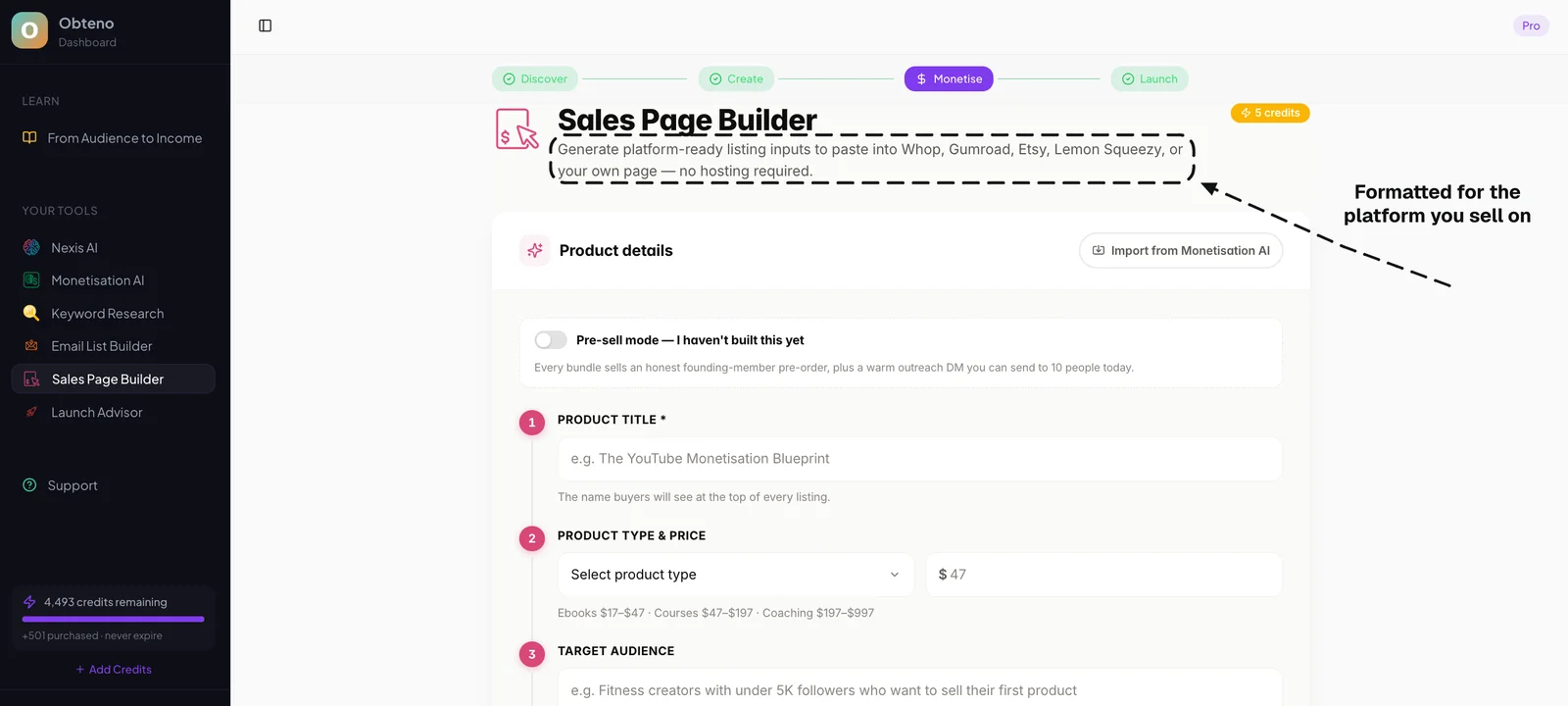
This is where a tool like Obteno comes in. It builds the planner itself. You tell it your niche. It uses real keyword data to find what people are searching for. Then, it can:
- Generate planner page ideas: Based on your niche, it suggests relevant sections and content.
- Write prompts and exercises: For goal-setting, reflection, or productivity sections.
- Design covers and internal layouts: It can give you design starting points, saving you time.
- Package files and write sales copy: It prepares product descriptions and listing details for you.
What Obteno does not do is the tablet hyperlinking — that step is still yours, in Canva or Acrobat. Everything before it, from the page content to the cover to the packaged PDF, comes out finished.
Step 4: Add Interactivity (Hyperlinks)
This is what makes a digital planner "digital".
- In Canva, as mentioned, you link elements to specific pages.
- In Adobe products, you use the Hyperlinks panel.
- If you're assembling pages from images (e.g., Procreate exports), you'll use a PDF editor (like Adobe Acrobat Pro) or a presentation software (Keynote, PowerPoint) to overlay invisible links onto areas like tabs or index entries.
Test every single hyperlink. Click through your entire planner. Make sure every tab, button, and index entry goes to the correct page. This is crucial for a good user experience.
Step 5: Export and Optimise Your PDF
Export your final planner as a PDF. Ensure it's a high-quality "Print" PDF, not a "Web" PDF, to preserve image quality and hyperlinks.
Optimise the file size. Large files can be slow to download and use.
- If using Canva, choose "PDF Print" and then select "Flatten PDF" if available.
- If using Adobe products, use "Save As" and choose "Optimised PDF". Reduce image quality slightly if needed, but don't compromise readability.
- Free online PDF optimisers can also help, but be careful with privacy if your content is sensitive.
Name your file clearly: `YourPlannerName-Year.pdf`.
Where to Sell Your Digital Planner
You have a finished product. Now you need a storefront. Obteno is a product creation tool, not a place to sell. You need to choose a platform that handles payments and file delivery.
Here are the main options:
| Feature | Gumroad | Etsy | Your Own Website (e.g., Shopify Lite) | Obteno (for comparison) |
|---|---|---|---|---|
| Primary Function | Digital product marketplace & storefront | Handcrafted/vintage marketplace | Fully customisable storefront | AI product generation tool |
| Best For | Creators wanting a simple storefront | Artisanal goods, high search volume | Building a brand, full control | Rapid product creation & content generation |
| Fees / Commission | 10% per transaction Gumroad's pricing (plus payment processing) | £0.16 listing fee, 6.5% transaction fee Etsy's fees (plus payment processing) | From $9/month (Shopify Lite) Shopify pricing, plus payment processing | $39-99/month (subscription) |
| Discovery / Traffic | Some internal discovery, relies on you | Strong internal search (millions of users) | Relies entirely on your marketing efforts | None – it's a creation tool |
| Payment Processing | Built-in (Stripe/PayPal) | Built-in (Etsy Payments) | Via integrated payment gateways (Stripe, PayPal) | Not a checkout – you sell elsewhere |
| File Delivery | Automatic after purchase | Automatic after purchase | Automatic via e-commerce plugin | Not a checkout – you sell elsewhere |
| Customisation | Limited storefront customisation | Limited shop customisation | Full customisation | N/A (not a selling platform) |
Gumroad
Gumroad is straightforward. You upload your product. You set a price. You get a link. You share that link. It handles the payments and file delivery. It's a checkout, not a shop window. You need to bring your own traffic.
It charges a flat 10% fee per transaction. This is on top of payment processing fees (e.g., Stripe, PayPal). This can add up. But it's easy to start.
Etsy
Etsy is a massive marketplace. Millions of people search for products there. This means built-in traffic. You pay to list your item (£0.16 per listing). Then you pay a 6.5% transaction fee on the sale price. These fees are documented on Etsy's legal page.
The downside: competition. Many people sell digital planners on Etsy. You need strong product photography and compelling descriptions. You need to stand out.
Your Own Website (e.g., Shopify Lite)
This gives you the most control. You build your own brand. You control the customer experience. You own your customer list.
Shopify Lite allows you to add a "Buy Button" to an existing website or blog for $9/month as per Shopify's pricing. This is a good starting point if you already have an audience.
The challenge: you are responsible for everything. Building the site, driving traffic, marketing, customer service. This is more work. But the rewards can be higher. You keep a larger percentage of sales.
Start where your audience is. If your niche is active on Etsy, start there. If you have an existing social media following, Gumroad or your own site might be better.
Pricing Your Digital Planner for Profit
Pricing is tricky. Price too high, you lose sales. Price too low, you undervalue your work.
Consider these factors:
- Perceived Value: What problem does your planner solve? How much is that solution worth to your customer? A planner that helps a small business owner save 10 hours a month is worth more than a basic daily planner.
- Competitor Pricing: Look at similar planners on Etsy, Gumroad, and other marketplaces. What's the average range? Don't just copy. Understand why they are priced that way. Is it the design? The features? The branding?
- Your Time and Effort: How long did it take you to create? While it's a one-time effort, it still has a cost.
- Platform Fees: Factor in the fees from Etsy (listing + transaction) or Gumroad (percentage). You need to make a profit after these deductions.
- Bundling: Can you offer different tiers? A basic planner, a planner + stickers bundle, a planner + tutorial bundle? This allows for different price points.
Let's look at an example.
If you sell on Etsy:
- Planner price: £15.00
- Etsy listing fee: £0.16
- Etsy transaction fee (6.5%): £0.98
- Payment processing fee (e.g., 4% + £0.20): £0.80
- Your net profit: £15.00 - £0.16 - £0.98 - £0.80 = £13.06
Now I want to be careful, because that number gets misused. It does not mean digital products don't work. It means you must price correctly. You need to account for costs. Many beginners forget the fees. They price too low. Then they are disappointed with their profit margins.
Marketing Your Digital Planner
Having a great product is only half the battle. People need to know it exists.
- Optimise Your Listings:
- Keywords: Use relevant keywords in your title and description. What would your ideal customer search for? "Student digital planner," "iPad planner," "budget planner GoodNotes." Use tools like eRank or Marmalead for Etsy, or Google Trends trends.google.com for general search terms.
- Thumbnails/Mockups: Create appealing mockups. Show the planner in use on a tablet. Highlight key features. Use high-quality images.
- Description: Clearly state what the planner is, who it's for, and what problems it solves. List its features. Explain how to use it.
- Call to Action: Tell people what to do next. "Buy now," "Add to cart."
- Social Media Marketing:
- Instagram/TikTok: Visual platforms work well for planners. Create short videos showing your planner in action. Share tips on productivity or organisation. Use relevant hashtags.
- Pinterest: This is a search engine for images. Create beautiful pins linking directly to your product page. Use keywords in your pin descriptions.
- Niche Communities: Find Facebook groups, Reddit communities, or forums related to your niche (e.g., "GoodNotes users," "small business owners UK"). Share genuinely helpful content. Occasionally, and only if allowed, mention your product. Do not spam.
- Content Marketing:
- Blog: Write articles about productivity, goal setting, or specific challenges your planner addresses. Link to your planner naturally within the content.
- YouTube: Create tutorials on how to use your planner. Share planning tips.
- Email List:
- Offer a freebie (e.g., a free mini planner template, a sticker set) in exchange for email sign-ups.
- Nurture this list. Share valuable content. Announce new products or sales. This is your most valuable asset.
Do not try to be everywhere. Pick one or two marketing channels. Focus your efforts there. Optimise what works.
Scaling and Optimising Your Sales
Once you have your first sales, you can improve and expand.
Review and Iterate
- Collect Feedback: Ask your customers for reviews. Read what they say. What do they like? What could be improved?
- Analyse Sales Data: Which planners sell best? Which marketing channels bring the most traffic? Double down on what works.
- Update Your Product: Based on feedback, release updated versions. Fix bugs. Add new features. You can offer these as free updates to existing customers or sell them as new versions.
Expand Your Product Line
Don't stop at one planner.
- Variations: Offer your planner in different colours, themes, or layouts.
- Bundles: Combine your planner with complementary products. Digital stickers, extra note pages, goal-setting worksheets.
- Other Digital Products: Explore related items. Notebooks, journals, habit trackers, budget templates, social media templates. Obteno builds those too — same niche, new pack, with the pages, the cover and the listing copy each time.
Explore New Markets
- Internationalisation: If your planner is in English, consider creating versions in other languages.
- New Platforms: If you started on Etsy, consider adding Gumroad or your own website.
Scaling is about doing more of what works. It means being responsive to your customers. It means continually improving your offering.
Open Etsy and search your niche. Read the first ten listings' reviews.
Frequently Asked Questions
What software do I need to create a digital planner?
You typically need design software like Canva, Adobe Illustrator, or Procreate. A PDF editor (like Adobe Acrobat Pro) or presentation software (Keynote, PowerPoint) is then used to add hyperlinks and finalise the interactive PDF.
Can I really make money selling digital planners?
Yes, you can. The digital planner market is growing, and many creators earn income from selling them. Success depends on niche selection, product quality, effective marketing, and consistent effort. It's not a get-rich-quick scheme.
How much should I charge for a digital planner?
Prices vary widely, from £5 to £50 or more. Research competitor pricing in your specific niche. Factor in your design time, the value your planner provides, and platform fees. Many profitable planners fall in the £10-£25 range.
Do I need to be a graphic designer to create a digital planner?
No. Tools like Canva offer user-friendly interfaces and templates, making it accessible for beginners without formal design training. Obteno goes further and builds the pages and the cover for you, so no design training is needed to finish a first planner.
How do customers use digital planners?
Customers download the interactive PDF file and import it into a note-taking app on their tablet or computer. Popular apps include GoodNotes, Notability, and Xodo. They can then write, type, and navigate the planner using its hyperlinks.
What are the ongoing costs of selling digital planners?
Ongoing costs include platform fees (e.g., Etsy listing fees, Gumroad transaction fees), payment processing fees, and potentially subscription costs for design software (e.g., Canva Pro) or product generation tools (e.g., Obteno). Marketing expenses are also a factor.